BlogTerminal
Trading computer setup: one terminal on desktop and laptop
How to set up trading across two computers: what a laptop needs, what should move with you and what should stay put, and what happens to open positions.

Contents
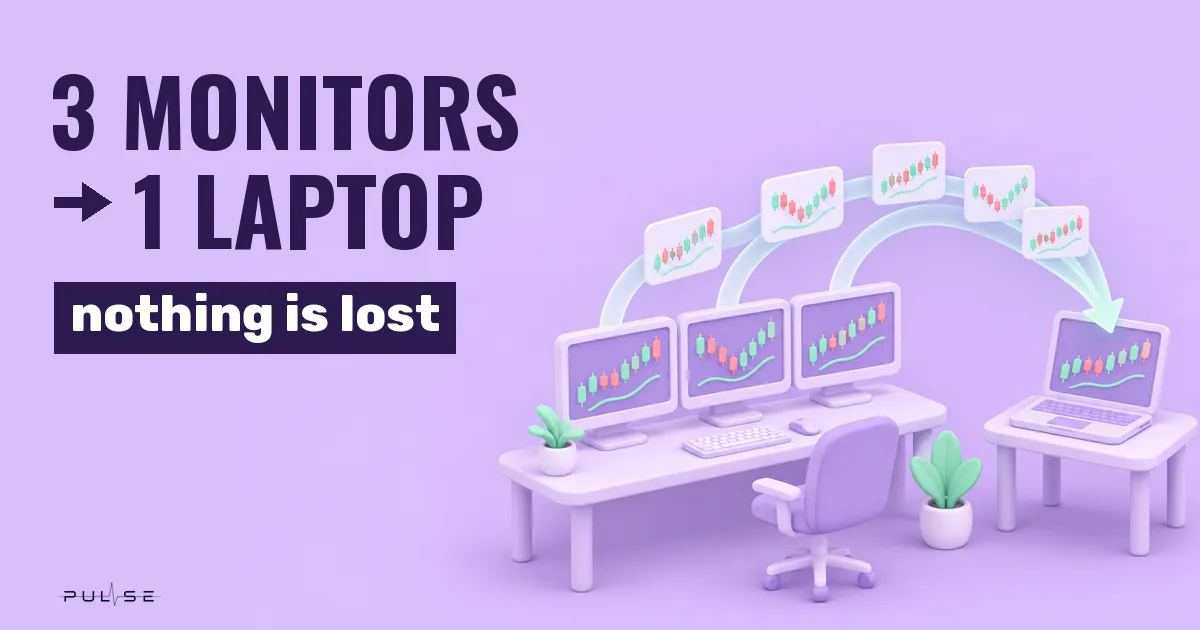
A trading computer setup is rarely one machine: a desktop with two or three monitors during the day, a laptop in the evening. To avoid setting up your terminal again, drawings, alerts and window layout should live in your account and move with you. Exchange keys and broker passwords stay on each computer, and only one copy of the app manages open positions.
What a trading setup looks like
A trading setup is the computer, monitors and software you trade from. Often it is not one place but several:
| Where | Monitors | What for |
|---|---|---|
| Desktop at home | 2–4 | main trading, several charts with the order book next to them |
| Laptop | 1 | travel, evening review, trades away from home |
| Phone | — | alerts and closing a position if something goes wrong |
The trouble starts where they meet. You drew a level on the desktop during the day, and it isn't on the laptop. An alert is set on one computer and rings on the other one, not where you are. Indicator templates and the ticker list have to be redone by hand.
Trading computer setup: what a laptop needs
A trading laptop doesn't have to be a gaming machine. The load comes not from the charts themselves but from how many there are, tick data, heavy indicators and the number of broker terminals running, each of which is a separate program. An ordinary office laptop handles a few charts, while many charts with the order book and footprint need spare memory.
Mind the operating system. Microsoft ended support for Windows 10 on October 14, 2025, so it no longer gets security updates. For a computer you trade real money from, that is a reason to move to Windows 11.
What to move and what to leave in place
Move what you set up by hand: drawings, alerts, tabs and windows, templates, position management rules, trade notes. Leave the secrets in place: exchange API keys and broker passwords. If they travel as a file or through a cloud folder, a stolen laptop opens the door to your account.
Copying the app folder from one drive to another is a poor option too: two copies with the same drawings drift apart fast, and soon you can't tell which one is current. It is more reliable when settings live in your account and one copy runs at a time.
How to move your workspace in Pulse Terminal
Pulse Terminal is a trading terminal for Windows that keeps your workspace in your account, so it follows you. The license works on three of your computers, and Pulse runs on one of them at a time.
- Open Pulse on the other computer. If the previous one is running, you see "Move the workspace here?". If it is off or asleep, there is no question.
- Press "Move here". The previous computer saves everything, hands over position management and stops.
- A couple of seconds later the new computer is working with the same workspace, tabs and windows.
- To go back, press "Bring back here" on the previous computer.
One computer works at a time, because two copies shouldn't manage the same position. Changes save two seconds after your last edit and immediately on a move, so a line drawn just before the move will be on the new computer. You don't need to copy the terminal folder to move.
What moves and what doesn't
| Moves with your account | Stays on the computer |
|---|---|
| drawings on all charts | exchange API keys |
| alerts and their templates | MetaTrader 5, its slots and broker passwords |
| Market Watch, tabs, window positions | quote history |
| templates and settings: look, language, hotkeys | Backtest runs and loaded MetaTrader 5 reports |
| your own Pine scripts | account commission and broker color |
| position management rules | the install's service files |
| trade notes, tags and ratings |
On the new computer an exchange appears without its key, and its row says "Enter the API key on this computer". Each computer has its own MetaTrader 5. Windows reconnect to the same account by login and server, and if that account isn't here, the window opens in View mode with trading off. The Telegram bot token travels separately and only encrypted with your account key, so alerts keep arriving without entering it again. A Backtest run you need can be exported as a file and loaded into the journal on the other computer.
Monitors and a weak laptop
Your desktop has three monitors and your laptop has one. On the laptop, windows you moved out gather as tabs in the main window, and nothing is lost. Back at the desktop, the windows return to their monitors and places: positions are remembered for each set of monitors.
If the laptop is weak, Pulse offers "This computer looks low-end — turn on optimization?" on its own. The question comes when there is less than 8 GB of memory, the processor has four logical cores or fewer, or the window takes longer than 50 ms per frame for a minute in a row. In that mode inactive workspaces are unloaded, the chart price updates less often, fewer candles load per chart, and animations are off.
Open positions during a move
Your stop and take profit sit at the broker, and nothing happens to them during a move. Target steps, break-even and the trailing stop are run by the terminal itself, so it checks your accounts before the move. If a managed position is open on an account that isn't connected on the new computer, the question warns you: nothing there will manage it. A stop that trailing was pulling up stays at the broker where it was last placed.
Alerts and position management run in the terminal's service, not in the window: while Pulse is running, they keep working even if the chart is closed or minimized.
Connection and replacing a computer
Trades don't ask the server for permission. While the server isn't answering, the computer that was working last keeps working, break-even, target steps and trailing included. The one thing you can't do is switch to another computer, because the new one needs an answer from the server. After more than a day without a connection, new trades pause, and you can always close a position.
You swap computers in your account. Unlinking and replacing are limited to 10 times per 90 days, and moves between your own computers are unlimited. Exchange keys are entered again on the new computer, as in the first setup of your broker and crypto exchanges.
FAQ
Can you trade from two computers at the same time?
You can watch charts anywhere, but in Pulse only one computer manages positions at a time. That way two copies can't move the same stop in different directions. Switching to another computer takes a couple of seconds: the "Move the workspace here?" question and one button.
How do you move a trading terminal to another computer?
Install Pulse on the new computer and sign in with the same account. Drawings, alerts, tabs and settings arrive on their own, with no folders to copy. What is left is entering the exchange API keys and connecting MetaTrader 5 with your account.
What laptop do you need for trading?
An ordinary laptop with Windows 11 handles two or three charts. The memory guideline is 8 GB or more: with less, Pulse offers a lighter mode. If you keep many charts, the order book and several broker terminals open at once, we would take 16 GB and a processor with more than four logical cores.
What happens to an open position if the laptop shuts down?
A stop and take profit sitting at the broker trigger without the terminal. Break-even, target steps and trailing are run by the terminal itself, so without it they freeze, and the stop stays where it was last placed. Open Pulse on any of your computers with the same account connected, and position management continues.
The numbers in this article are worked examples, not trading advice. Trading on financial markets carries a risk of losing money.